Notion: Notes, Tasks, AI
Notion Labs, Inc.Productivity
4.64.84K Reviews
- Version
- 0.6.4091
- Installs
- 10.00M
- Age Rating
- Everyone
Screenshots
Our Review of Notion: Notes, Tasks, AI
 Analysis by Appyee
My first impression of Notion is that it makes most sense when I treat it as a set of building blocks rather than a single-purpose notes app. A page can begin as a quick thought and grow into a project space, but that freedom comes with a choice: I have to decide how much structure I actually want. If I enjoy shaping a workspace around the way I think, that trade-off feels worthwhile. If I just want a ready-made checklist, it may feel like more setup than the task deserves.
Where it fits in a daily routine
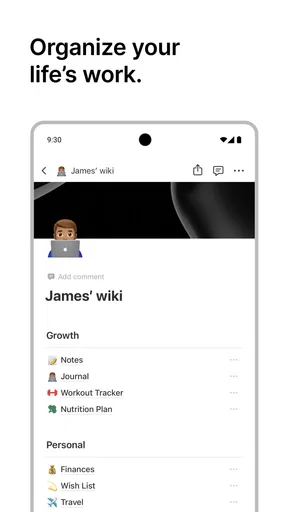
A useful way to start is with one small, repeatable job: a weekly plan, a reading list, or notes for an ongoing project. I would avoid building a complete personal operating system on day one. A simple page with a few clear sections gives me somewhere to capture information before I decide whether it needs a more elaborate arrangement. This keeps customization from turning into a hobby that competes with the work I meant to organize.
For example, I might use a project page to collect meeting notes, open questions, and next actions. A board can make the status of tasks easier to scan, while a calendar view can help me notice when several deadlines are bunching together. The practical benefit is less about having several layouts for their own sake and more about choosing the one that answers the question I have right now: what is unfinished, what is coming up, or what did we decide?
Building a structure that stays useful
Templates are most helpful when they remove a decision I make repeatedly. I would make a meeting template with space for an agenda, decisions, and follow-ups, then reuse it rather than redesigning every set of notes. For a project, I would keep the task details close to the background information instead of scattering them across unrelated pages. That relationship between reference material and action is one of the app’s more distinctive strengths, especially when a project changes over time.
There is a trade-off, though. A flexible workspace can become difficult to navigate if I create pages and databases without agreeing on names or a simple home page. I recommend choosing a few top-level areas and deciding where new material belongs before the workspace gets crowded. Search can help retrieve something I already know exists, but it is not a substitute for a structure that makes the next step obvious to a teammate or to my future self.
Working with other people
Shared pages are useful when a group needs one place to collect evolving information, rather than a finished document passed around after the fact. I can see this working for a class project, a small team’s meeting notes, or a plan that several people need to review. Comments and task assignments help connect discussion with follow-up, but a group still needs to agree on who maintains the page and what counts as complete. Without that habit, a shared space can become a collection of half-updated notes.
I would also be deliberate about what I put in a shared workspace. Before inviting collaborators, it helps to check which pages are intended for them and keep personal notes separate. That small boundary-setting step matters more than adding another view: a tidy page is useful, but a clear understanding of who should see and update it is what makes collaboration comfortable.
AI as a starting point, not an authority
The built-in AI can be handy when a blank page is the main obstacle. I might ask it to help shape rough points into a first draft or condense a long set of notes into a more readable summary. I would still check names, decisions, dates, and any wording that could change the meaning. Generated text can save effort at the drafting stage, but it should not quietly become the record of what a team agreed to without someone reviewing it.
For a personal workflow, AI is most useful when I already have material to work from: scattered ideas, notes that need organizing, or a draft that needs a clearer structure. If I need highly specialized writing or a carefully sourced answer, I would use a tool suited to that task and treat Notion as the place to keep the final working notes. That distinction helps me get value from the feature without expecting it to replace judgment.
What to expect on a phone
On a mobile screen, I would use the app mainly to capture information, check a task, or review a page while away from my desk. Designing a complex workspace is easier when I can see more of it at once, so I would save detailed restructuring for a larger screen. A practical setup is to keep the most-used pages easy to reach and make the first action on each page obvious. That reduces the chance that a quick phone check turns into a hunt through nested pages.
Notion is free to start, with optional in-app purchases listed from $11.99 to $214.99 per item. It is rated for Everyone, and the Android listing shows a minimum operating-system requirement of version 8.0. The current version is 0.6.3684; version numbers alone do not tell me what changed between releases, so I would not treat a newer number as proof of a particular new feature. The app is made by Notion Labs, Inc., and its scale is reflected in more than 10 million installs and an average rating of 4.6 from around 342,000 ratings, alongside roughly 4,500 written reviews.
The free entry point makes it reasonable to try a small workflow before deciding whether the app suits me. I would first create one useful page and see whether I return to it naturally. If I am considering an in-app purchase, I would check the current purchase details in the app and weigh them against how often I use the features I need; the listed range is broad, so it is not a single price that applies to every user.
Compared with a basic notes app, Notion offers more ways to connect notes, tasks, and project information, but a simple notes tool is often quicker for capturing a thought with no setup. A dedicated task manager can be a better fit if all I want is a short list with reminders and minimal page-building. A conventional document editor may feel more direct when the main job is writing a polished document. I would choose Notion when the value comes from keeping related information together and adapting its layout, not merely because it can imitate several kinds of software.
Who is likely to enjoy it
I think it suits students who want to keep class notes beside assignment plans, freelancers coordinating several projects, and small groups that need a shared place for evolving plans. It is also a good fit for someone who likes to refine a system over time. I would skip it, or pair it with a simpler tool, if I dislike organizing pages, need a very focused reminder-first task app, or want a note to be instantly captured with no decisions about where it belongs. The best setup is not the most elaborate one; it is the one I will keep using when the week gets busy.
For a realistic weekday, I could open a project page before a meeting, add a few agenda points, and record decisions as they come up. Afterward, I could turn the agreed actions into tasks and use the page as a reference when I return to the work. Later, on my phone, I could check what is still open without rebuilding the context from memory. This is where the connected workspace idea earns its keep: the notes and next actions are near each other, so I spend less time switching between separate records.
There are still limits to that convenience. Putting everything in one place can make the workspace feel dense, and a clever template cannot compensate for unclear ownership or neglected updates. I would keep the number of databases modest, name pages in plain language, and review old project areas occasionally. If the system takes longer to maintain than the work it supports, I would simplify it rather than add another layer.
For someone deciding whether to try it, the main question is not whether Notion can hold notes or tasks; it is whether joining those pieces will make their work easier to follow. I would start with one real need, such as planning a course assignment or coordinating a shared project, and resist copying a complicated template before understanding the workflow. If the page becomes a natural place to return to, expand it gradually. If it feels like overhead, a dedicated notes or task app is a perfectly sensible choice.
Let's dive into the world of Notion: Notes, Tasks, AI, an app that promises to be a game-changer for anyone looking to streamline their life. Whether you're a student juggling assignments or a professional managing projects, this app claims to be your all-in-one workspace. Having spent some time exploring its features, I’m here to share my thoughts.
First Impressions and User Interface
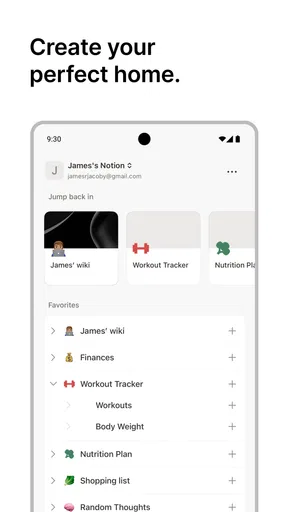
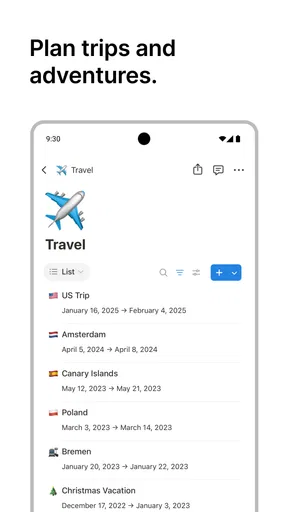
From the moment you open Notion: Notes, Tasks, AI, you're greeted with a clean and intuitive interface. The design is minimalist, making it easy for new users to navigate without feeling overwhelmed. Everything seems to be just a click away, and I love how customizable the workspace is. You can switch between different views like lists, boards, and calendars, which is super handy depending on your preference.
Features That Stand Out
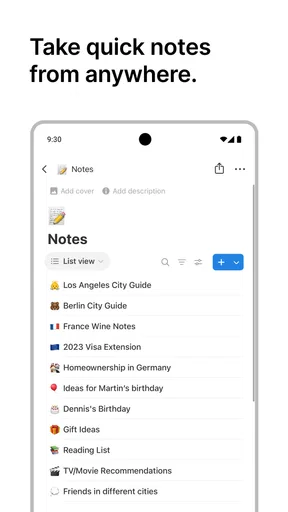
One of the standout features is the app's incredible flexibility. It's not just a note-taking app; it's a powerful tool that can transform how you organize your life. Need to draft a quick note? Done. Want to manage a complex project with multiple collaborators? Easy. The app's ability to adapt to different needs is genuinely impressive.
The integration of AI is another feature worth mentioning. The AI assists in generating content, which is perfect when you're stuck in a creative rut. It can help draft emails, brainstorm ideas, or even summarize lengthy notes. It’s like having a personal assistant by your side.
Collaboration Made Easy
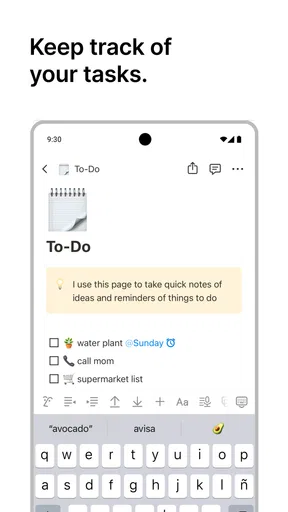
For teams, Notion is a powerhouse. You can share pages with colleagues, comment on tasks, and even assign duties directly within the app. The collaborative aspect is seamless, ensuring everyone is on the same page—literally. I found this particularly useful for group projects and team meetings where everyone needs to contribute their input.
Customization Galore
Customization is another area where Notion shines. You can create templates for almost anything—from meeting notes to project outlines. The app allows you to build your workspace exactly how you want it, which means you're not just stuck with a one-size-fits-all model. It's like having a digital space that's truly yours.
Performance and Accessibility
Performance-wise, the app runs smoothly on both Android and iOS. I didn’t encounter any significant lags or crashes, which is always a relief. Plus, the fact that you can access Notion from any device is a huge plus. Whether you're on your phone, tablet, or desktop, your information is always up-to-date and accessible.
Wrapping Up
In conclusion, Notion: Notes, Tasks, AI is more than just an app—it's a lifestyle upgrade. Whether you're organizing your daily tasks or managing a team project, this app is equipped to handle it all. The flexibility, combined with the powerful AI features, makes it an invaluable tool for anyone looking to optimize their productivity.
If you're ready to take control of your chaotic schedule and boost your efficiency, then Notion might just be the app you've been waiting for. Give it a try, and you might find it becomes a staple in your daily routine, just like it has in mine.
Verdict
Strengths of Notion: Notes, Tasks, AI
- Highly customizable workspace.
- Seamless integration with other tools.
- Real-time collaboration features.
- AI assistance boosts productivity.
- Cross-platform synchronization.
Limitations of Notion: Notes, Tasks, AI
- Steep learning curve for beginners.
- Limited offline functionality.
- Occasional syncing issues.
- Free version has limited features.
- Mobile app can feel cluttered.
Similar Picks in This Category
View All
Google Calendar
Google LLC4.6

Google Drive
Google LLC4.3

Google Assistant
Google LLC3.9

Microsoft OneDrive
Microsoft Corporation4.6

Samsung Calendar
Samsung Electronics Co., Ltd.4.1

Microsoft OneNote: Save Notes
Microsoft Corporation4.6
Frequently Asked Questions
What is Notion, and how does it work?
Notion is a versatile productivity app that combines note-taking, task management, and artificial intelligence features into one platform. It allows users to create customizable workspaces to plan projects, organize notes, and collaborate with others. The app’s AI feature assists in generating ideas and automating repetitive tasks, enhancing overall productivity.
Is Notion suitable for team collaboration?
Yes, Notion is designed for both individual and team use. It offers real-time collaboration features, allowing multiple users to work on the same document simultaneously. Teams can create shared workspaces, assign tasks, and track progress, making it an excellent tool for collaborative projects and effective teamwork.
Can Notion be used offline?
Notion offers limited offline capabilities. While you can access previously opened pages offline, full functionality requires an internet connection. Any changes made offline will sync once you reconnect to the internet. For users who frequently work offline, this is an important consideration when using Notion.
What platforms is Notion available on?
Notion is available on various platforms, including Android, iOS, macOS, Windows, and web browsers. This cross-platform availability ensures that users can access their workspaces from different devices, making it convenient for those who switch between devices throughout the day.
How does Notion’s AI feature enhance productivity?
Notion’s AI feature boosts productivity by automating routine tasks and providing intelligent suggestions. It can help generate content ideas, organize information more efficiently, and even draft text based on user input. This feature saves time and enhances the creative process, making it a valuable tool for users seeking efficiency.
